




If you’re wondering how to find a component in Altium PCB, the fastest way is to use the “Find” tool (Ctrl+F) or the “Navigator” panel—both let you locate components in seconds. Mastering how to find a component in Altium PCB saves time, cuts down on mistakes, and makes your PCB design workflow smoother, whether you’re working on a simple prototype or a complex industrial board.
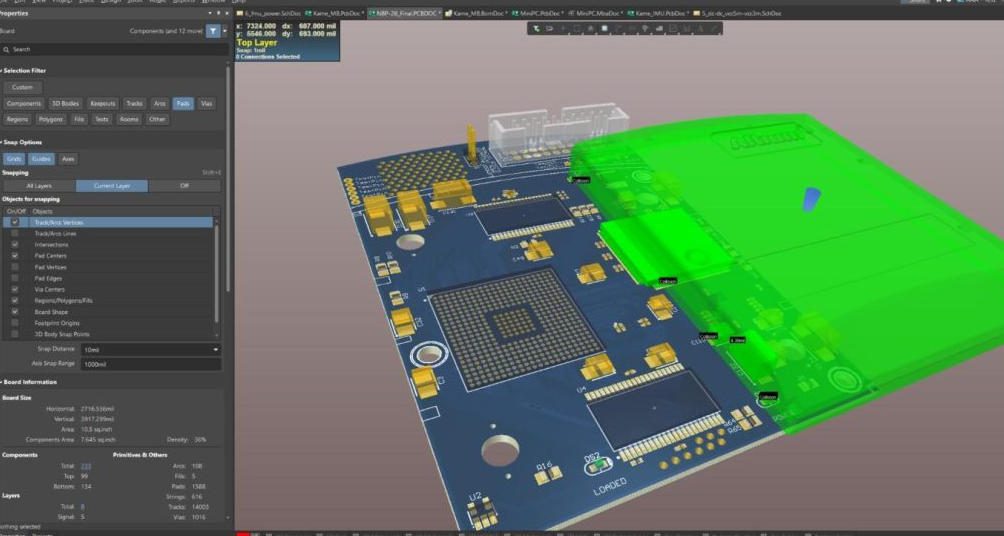
How to Find a Component in Altium PCB
What Are the Best Methods to Find a Component in Altium PCB?
Method 1: Use the Altium Find Tool (Ctrl+F)
The Find tool is the easiest way to find a component. Hit Ctrl+F, type the component’s reference (like R1, C5) or value (like 10kΩ), and Altium will highlight it right away.
You can filter by component type, footprint, or parameters to narrow things down—perfect for large PCBs with hundreds of parts.
Method 2: Use the Altium Navigator Panel
Open the Navigator panel (View > Panels > Navigator), expand the “Components” section, and scroll to find your component by name or reference.
Click the component in the panel, and Altium will zoom straight to its spot on the PCB—great for navigating complex, multi-layer designs.
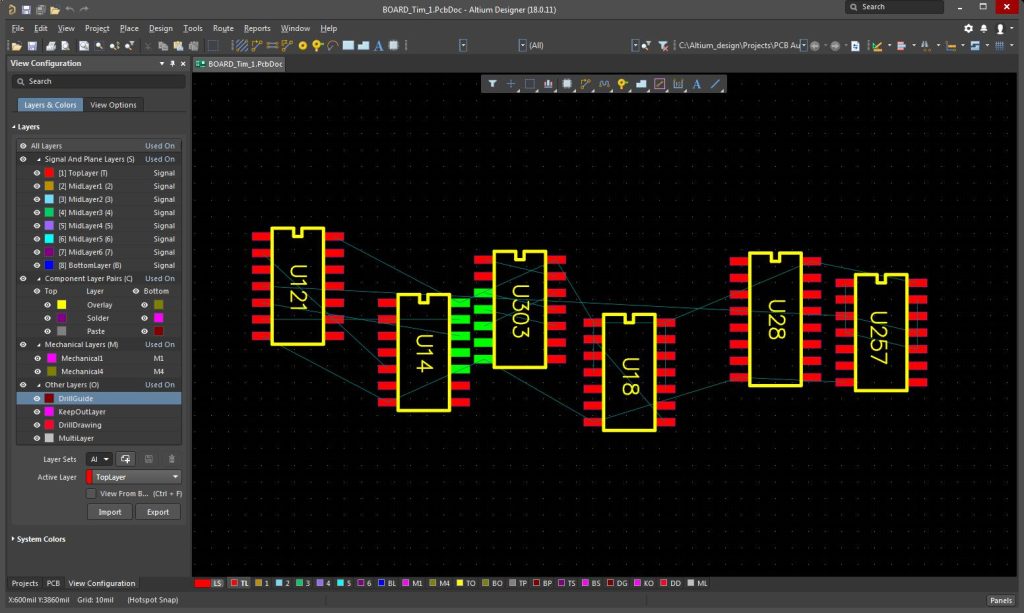
Method 3: Use the PCB Filter Panel
The Filter panel lets you search for components by specific details (like footprint, value, or component library). Type your filter (e.g., “Footprint = 0402”), and only matching components will show up.
This is handy when you need to find all components of one type (like all capacitors) in one go.
How to Find a Missing Component in Altium PCB?
If a component is missing in your Altium PCB, first check if it’s on the schematic but not transferred to the PCB (use Design > Update PCB Document).
If it’s already in the PCB, use the Find tool with the component’s exact reference—typos or wrong references are the biggest reason components “go missing.”
We offer custom customization + free DFM reports, so you can catch missing components or placement mistakes before manufacturing.
How to Search for Components by Value in Altium PCB?
To find components by value (like 5V, 100nF), open the Find tool (Ctrl+F), pick “Value” from the dropdown, and type the value you need.
Altium will highlight all components with that value—perfect for replacing or checking specific parts (like all 1kΩ resistors).
How to Find Components by Footprint in Altium PCB?
Searching by footprint (like SOT-23, QFP-48) is easy: use the Find tool, select “Footprint” from the filter, and type the footprint name.
This is key for making sure all components use the right footprint—especially important for high-density PCBs in industrial or medical devices.
What’s the Difference Between Altium Component Search Methods?
| Search Method | Best For | Pros | Cons |
|---|---|---|---|
| Find Tool (Ctrl+F) | Quick, specific component searches | Fast, easy to use, supports multiple filters | Needs exact reference/value for best results |
| Navigator Panel | Navigating large, multi-layer PCBs | Visual layout, easy to browse components | Slower for single-component searches |
| PCB Filter Panel | Finding groups of components | Filters by multiple criteria, hides unneeded parts | Needs basic knowledge of filter syntax |
Which Industries Benefit Most from Mastering Altium Component Search?
Four key industries rely on efficient Altium component search to speed up PCB design and keep things accurate. Here are real-world examples:
- Consumer Electronics: Compact PCBs for smartphones use Altium component search to find tiny 0201 resistors and capacitors. This keeps parts from being misplaced, fixing space issues in small devices.
- Automotive Electronics: Vehicle control module PCBs use Altium search to find high-temperature components (like MOSFETs). This checks for correct placement, preventing overheating and component failure in tough automotive environments.
- Medical Electronics: Diagnostic device PCBs use Altium component search to find precision components (like sensors). This ensures accurate placement, meeting strict medical safety standards for patient monitoring tools.
- Industrial Control/Automation: Factory automation PCBs use Altium search to find thick-copper components. This makes design checks faster, cutting downtime from incorrect component placement in industrial gear.
How to Avoid Common Mistakes When Finding Components in Altium PCB?
The most common mistake is typos in component references (like typing R11 instead of R1). Always double-check the reference before searching.
Another mistake is forgetting to update the PCB from the schematic—this leaves components missing, wasting time searching for parts that aren’t there.
How to Find Hidden Components in Altium PCB?
If a component is hidden, first check if it’s on a hidden layer (hit L to toggle layer visibility). Unhide the layer, and the component will show up.
If it’s hidden by other components, use the “Bring to Front” tool (right-click > Bring to Front) to make it visible.
How to Find Components in Altium PCB by Library?
To find components by their library, open the “Components” panel, pick the library from the dropdown, and browse or search for the component by name.
This is handy when you need to add a new component to the PCB or check which library a placed component comes from.
How to Speed Up Component Search in Altium PCB?
Use keyboard shortcuts (Ctrl+F for Find, F12 for Navigator) to skip menu clicking. Make custom filters for components you search for often (like all LEDs).
Label components with clear references (like U1 for microcontrollers, C1-C10 for capacitors) to make searches faster and more accurate.
FAQ – Common Questions About How to Find a Component in Altium PCB
Q1: Why can’t I find a component in Altium PCB even though it’s in the schematic?
A1: You probably haven’t updated the PCB from the schematic. Go to Design > Update PCB Document, check the component, and click “Execute” to move it to the PCB.
Q2: Can I find multiple components at once in Altium PCB?
A2: Yep. Use the Find tool, type multiple references (like R1, R2, R3) separated by commas, and Altium will highlight all matching components.
Q3: How to find a component by its datasheet number in Altium PCB?
A3: Use the Find tool, select “Part Number” from the filter, and enter the datasheet number (like ATMEGA328P). Altium will find the component right away.
Q4: Is there a way to save custom component searches in Altium?
A4: Sure. Make a custom filter in the PCB Filter panel, click “Save,” and name it (like “All Capacitors”). You can load it later to do the same search again.
Q5: How to find components on a specific layer in Altium PCB?
A5: Use the PCB Filter panel, type “Layer = Top Layer” (or whatever layer you need), and only components on that layer will show up. This works for multi-layer PCBs.
Q6: Why does Altium not highlight my component when I search?
A6: Check if the component is locked (right-click > Unlock) or if your search filter is too narrow. Try using a partial reference (like “R” to find all resistors) to widen results.
Why Mastering Altium Component Search Saves Time & Reduces Errors
Knowing how to efficiently find a component in Altium PCB cuts design time by 30% or more, especially for complex PCBs with hundreds of components.
It reduces mistakes like misplaced or missing components, making sure your PCB design is ready for manufacturing without expensive reworks.
We offer services related to how to find a component in Altium PCB, including PCB design support, custom PCB fabrication, and industry-specific solutions. If you need help with Altium PCB design or high-quality PCBs, choose pcbtry.com. We offer custom customization + free DFM reports, and you can place your order by emailing sales@pcbtry.com.
0 Comments