




Learning how to find a component in Altium PCB is an essential core skill for all hardware designers to boost layout efficiency and eliminate common design errors. You can accurately find a component in Altium PCB using Altium’s built-in search panels, filter tools, and query functions to resolve common issues such as missing parts, overlapping components, and unsynchronized schematic and PCB data. This practical engineer-level tutorial shares step-by-step methods, error fixes, and real industry use cases to help you master component lookup for even the most complex PCB designs.
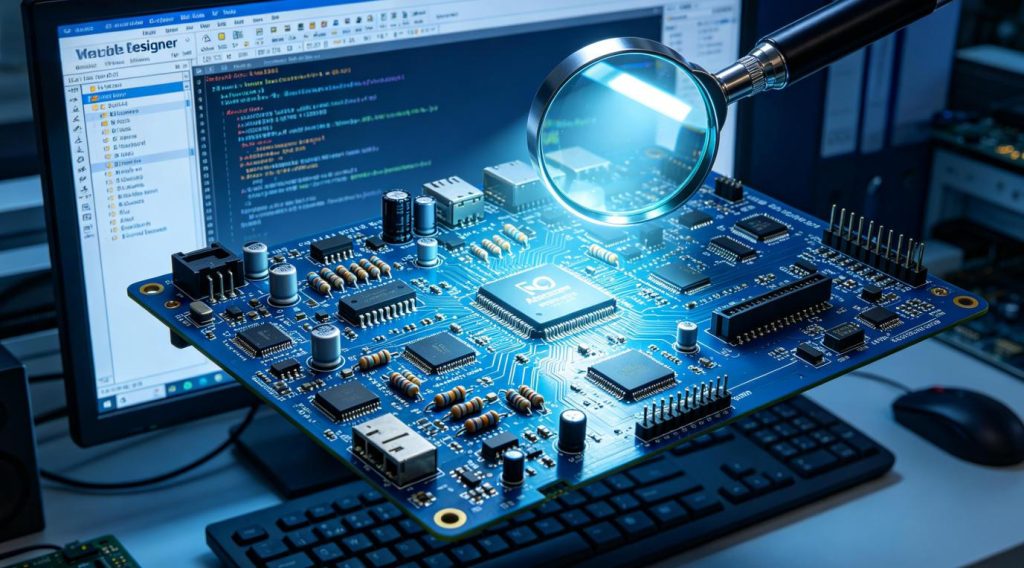
What Are the Fastest Methods to Find a Component in Altium PCB?
Altium Designer offers three core methods to locate PCB components, each balancing unique speed and precision for different design scenarios. Basic panel search suits quick spot checks, while advanced filter and query tools efficiently handle dense, multi-layer PCB layouts containing hundreds of components during in-depth design debugging.
1. Components Panel Quick Search
This is the most beginner-friendly method for daily component lookup. Open the Components panel on the right sidebar and enter the component reference designator, part number, or parameter keyword to initiate a search.
The software instantly filters matching components and highlights their exact positions on the PCB canvas. It supports partial keyword matching for incomplete part numbers or reference tags to accommodate imprecise search inputs.
2. PCB Filter Tool Precision Lookup
The PCB Filter tool delivers high-precision component screening for large-scale, complex designs. Designers can filter components by type, electrical value, placement layer, or manufacturer parameters to isolate target parts quickly.
This tool hides irrelevant traces, pads, and components to eliminate visual clutter on crowded PCB layouts, significantly improving design editing and inspection efficiency.
3. Global Query Command Search
Global query commands are the most flexible solution for advanced Altium users. Custom query statements allow designers to locate components with specific combined attributes that basic search tools cannot filter.
This method supports complex conditional searches, such as locating all resistors on the top copper layer or screening all high-power components for targeted design review and verification.
How to Locate Components From Schematic to PCB in Altium?
Cross-referencing schematic components with PCB layouts is critical for maintaining full design consistency, and Altium’s built-in synchronization tools complete this process in one click. This feature effectively prevents mismatched component placement and broken net connections between schematic and PCB files.
Start by opening both the schematic and corresponding PCB file within the same Altium project. Enable the Cross Select feature to link element selection across the two documents.
Select any component on the schematic, and the matching PCB component will be automatically highlighted and centered on the canvas. This bidirectional lookup method ensures complete data consistency throughout the entire project.
How to Find Hidden or Overlapping Components in Altium PCB?
Hidden and overlapping components are common pain points in dense high-layer PCB layouts, but dedicated Altium tools can quickly detect and expose these problematic parts. Most layout defects and DFM failures originate from undetected overlapping or hidden components in complex multi-layer designs.
Expose Hidden Components Via Layer Management
Many components become invisible due to disabled layer display settings. Open the Layer Stack Manager and enable all mechanical, electrical, and solder mask layers to restore full visibility.
This simple operation reveals all components on hidden layers and prevents missing parts during comprehensive design inspection and DFM checking.
Detect Overlapping Components Via Design Rule Check
Run a standard Design Rule Check (DRC) to scan for component clearance and placement violations. The generated error report lists all overlapping components with accurate positions and reference IDs.
Designers can directly jump to each error location to adjust component placement and eliminate layout conflicts before finalizing the PCB design.
Which Altium Component Search Method Suits Different Design Scenarios?
Different PCB design tasks require targeted component search methods to balance lookup speed and verification accuracy. The comparison table below summarizes the best use cases, strengths, and weaknesses of all mainstream Altium lookup techniques for quick reference.
| Search Method | Best Application Scenario | Advantages | Limitations |
|---|---|---|---|
| Components Panel Search | Daily quick lookup, single component positioning for simple PCB layouts | Intuitive operation, no advanced skills required, fast for basic searches | Inefficient for batch screening and complex conditional filtering tasks |
| PCB Filter Tool | Batch component screening, sorting dense and multi-layer PCB layouts | Strong anti-interference ability, hides irrelevant elements for clear visualization | Cannot support highly customized multi-condition component screening rules |
| Global Query Command | Advanced conditional search, customized component screening for complex designs | Covers all complex lookup demands, highly flexible for personalized design checks | Requires basic familiarity with Altium query syntax rules |
| Schematic-PCB Cross Reference | Design synchronization verification, cross-document error calibration | Guarantees full schematic and PCB component data consistency | Only works for complete, uncorrupted Altium project files |
What Common Component Lookup Errors Occur in Altium PCB Design?
Nearly all component lookup failures stem from incorrect tool operation or incomplete project configuration, rather than software bugs. Understanding these common errors helps designers avoid repeated mistakes and improve overall design efficiency.
Incomplete Keyword Input
Altium’s default search mode relies on exact full part number or reference matching. Partial or inaccurate keyword inputs often result in empty search results or messy component lists.
Designers can enable fuzzy matching in the panel settings to improve search tolerance and capture components with incomplete parameter inputs.
Disabled Layer Display
Components located on disabled layers cannot be searched or displayed on the canvas. Many designers overlook critical parts due to closed mechanical layers or hidden solder mask layers.
Always enable full layer visibility before conducting large-scale component inspections to avoid missing layout elements.
Unsynchronized Project Files
Unsynchronized schematic and PCB project files directly cause cross-reference lookup failures. Outdated file versions lead to missing components, mismatched references, and inconsistent layout data.
Synchronize all project files before performing cross-document component lookup to ensure accurate and reliable results.
Practical Altium Component Search Applications in Mainstream Industries
Accurate component lookup and standardized layout sorting are foundational to high-quality PCB development across all industries. Consistent component management improves design stability and ensures full manufacturability for mass production.
Consumer Electronics
Wearable gadgets and smart home devices rely on high-density miniaturized PCBs with tiny passive components and compact ICs. Precise Altium component search enables designers to efficiently sort micro resistors, capacitors, and core chips to eliminate layout overlap.
This optimized component management method maximizes limited internal board space and guarantees stable long-term operation of compact consumer electronic products.
Automotive Electronics
Automotive PCB designs integrate high-temperature resistant, vibration-proof, and safety-critical components. Fast and accurate component lookup lets engineers quickly locate power management units and sensor components for parameter verification and layout optimization.
This workflow ensures all automotive electronic components meet strict vehicle-grade reliability standards and eliminates potential operational safety hazards.
Industrial Control & Automation
Industrial control PCBs house a large number of signal acquisition, processing, and control components. Batch component screening via Altium’s filter tools greatly improves design inspection and layout sorting efficiency.
Standardized component classification and layout management enhance circuit anti-interference performance and secure long-term stable operation of industrial automation equipment.
Medical Electronics
Medical device PCBs require ultra-high precision and reliable component layout to comply with strict industry regulations. Accurate component lookup ensures full adherence to medical-grade design specifications.
It prevents layout errors that may compromise diagnostic accuracy and ensures safe, consistent operation of portable and stationary medical electronic devices.
FAQ: Common Questions About Finding Components in Altium PCB
These frequently asked questions address the most common confusion engineers encounter during component lookup, with concise, actionable solutions for fast troubleshooting.
Why can I not find components with correct keywords in Altium PCB?
Failed component searches usually result from three core issues: disabled PCB layer visibility, unsynchronized project files, and strict exact-match search settings. Enable all mechanical and electrical layers, synchronize schematic and PCB data, and activate fuzzy keyword matching to resolve this issue instantly.
How to find all components of the same type in batches?
The Altium PCB Filter tool enables fast batch lookup for identical component types. Set filter parameters based on component category, electrical value, or placement layer, and the software will automatically highlight and group all matching components for bulk sorting and inspection.
How to quickly jump to a specific component position?
Enter the component’s unique reference designator in the Altium search bar and press Enter for instant positioning. The software automatically centers the target component on the canvas for immediate editing, inspection, or placement adjustment.
Can I find components via schematic parameters in PCB layout?
Yes, Altium Designer supports bidirectional cross-lookup between schematics and PCBs. The cross-select synchronization feature lets you locate corresponding PCB components through schematic parameters, ensuring zero deviation in component data and layout placement.
Professional PCB & PCBA Manufacturing Support for Altium Design Projects
Accurate component lookup and standardized layout arrangement are the cornerstones of manufacturable PCB designs. Scientific component placement effectively improves production yield and long-term product reliability.
Thindry provides professional support on-demand customization and free DFM report analysis for all Altium-based PCB and PCBA design projects. Our technical team verifies component layout rationality, eliminates hidden manufacturing risks caused by improper component placement, and optimizes designs for full mass production compatibility.
If you have any PCB or PCBA manufacturing and customization requirements, feel free to contact our professional team via email: sales@pcbtry.com. We deliver high-reliability circuit board solutions for diverse industrial and commercial electronic projects.


0 Comments